myna
Help centre

How can we help?

Everything you need to set up Myna and get the most from it — from your very first day to the small stuff that trips people up.

Aunty the myna waving hello

Getting started

Five steps from "just downloaded" to a family that runs itself.

  1. 1

    Download Myna & start your family

    Install Myna on your own phone from the App Store or Google Play, sign in, and give your household a name. You become the first parent — the one who sets everything up.

  2. 2

    Set up the family hub

    Install Myna on a spare tablet and pair it to your family. Stand it on the TV console or mount it on the wall — wherever everyone gathers. The hub needs no login and shows big, tappable faces. (You can add more than one hub later.)

  3. 3

    Add everyone

    Open MANAGE → Add member. Invite your partner as a parent by sharing the family code. Add each child and helper, and set their role — roles decide what each person sees and can do.

  4. 4

    Set up a child's phone

    Install Myna on the kid's phone and turn on Guardian when prompted (it's an Accessibility service — that's what keeps the phone locked to Myna). Once Guardian is on, the phone becomes a safe, family-only device.

  5. 5

    Meet Aunty

    Open the Aunty chat, choose the voice that sounds like your family, and start telling her things to remember — allergies, the wifi password, who's allergic to what. She's your household's second brain.

Features, one by one

What each part of Myna does, and how to use it.

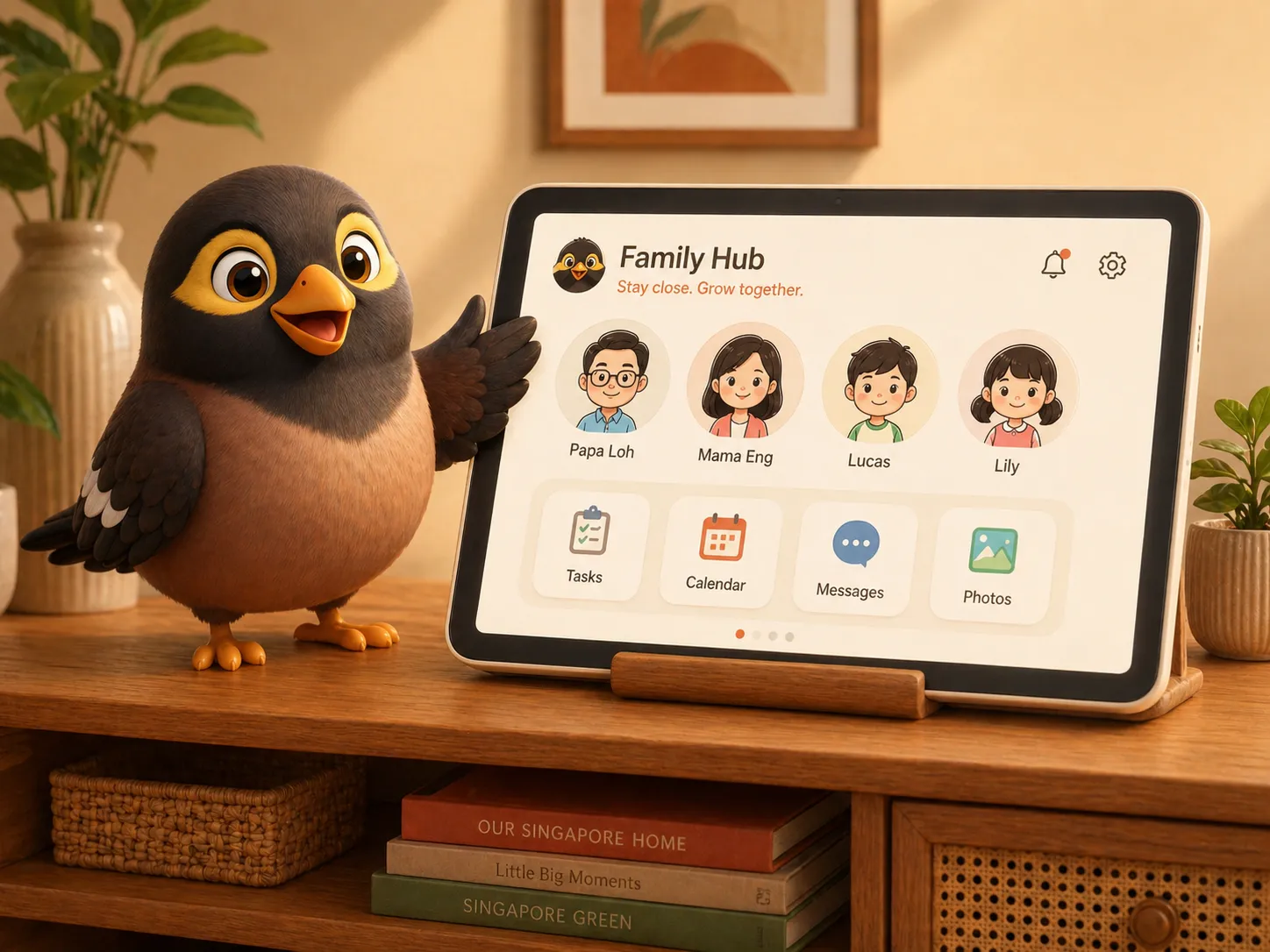
The Myna family hub tablet on a console, with Aunty the myna pointing at it

The family hub

Turn any spare tablet into the always-on heart of the home — no login, no settings, just big icons anyone can use.

  • Tap a face for a one-tap video call, or Drop In and the hub answers by itself.
  • Send a family announcement and it appears — and is read aloud — on every device.
  • Pin it where the family actually gathers: the console, the kitchen wall, the hallway.
  • Got two gathering spots? Add a second hub — they stay in sync.
Aunty the myna tucking a note into the family journal

Aunty, your household AI

Aunty is your family's second brain. Tell her once, and she remembers for everyone — then files, reminds, and answers when anyone asks.

  • The family wiki: allergies, shoe sizes, wifi passwords — saved privately, recalled the moment anyone needs them.
  • Snap any document — passport, insurance, school letter. She reads it, files it, and reminds you before it expires. Sensitive numbers live in an encrypted vault.
  • Email her your bookings: your family gets its own address. Forward e-tickets and school notices — they come back filed, dated and summarised.
  • Send a photo of a school timetable and she sets up the nightly "tomorrow's classes + PE attire" reminder by herself.
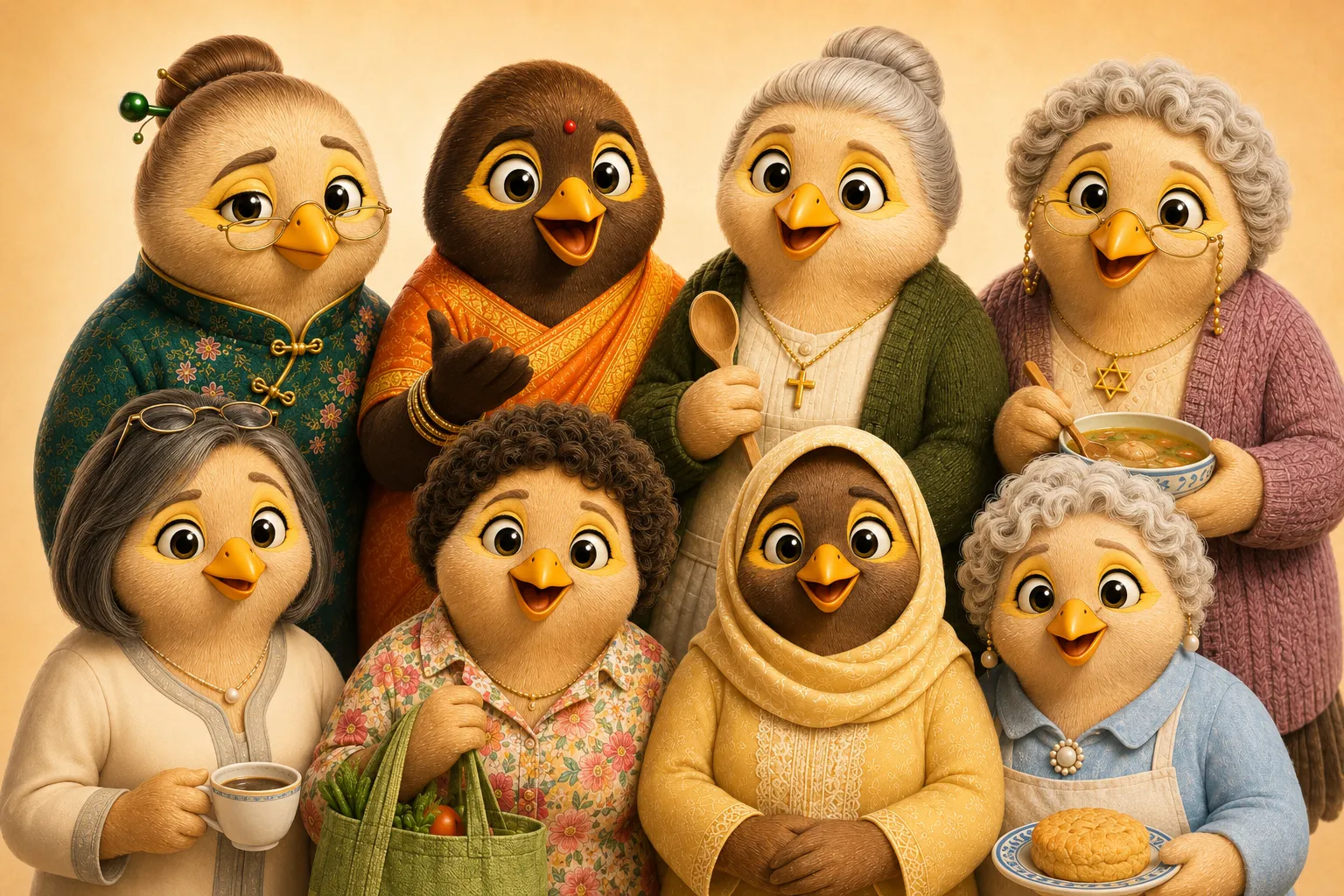
A grid of different Aunty characters, from kopitiam matriarch to grandma

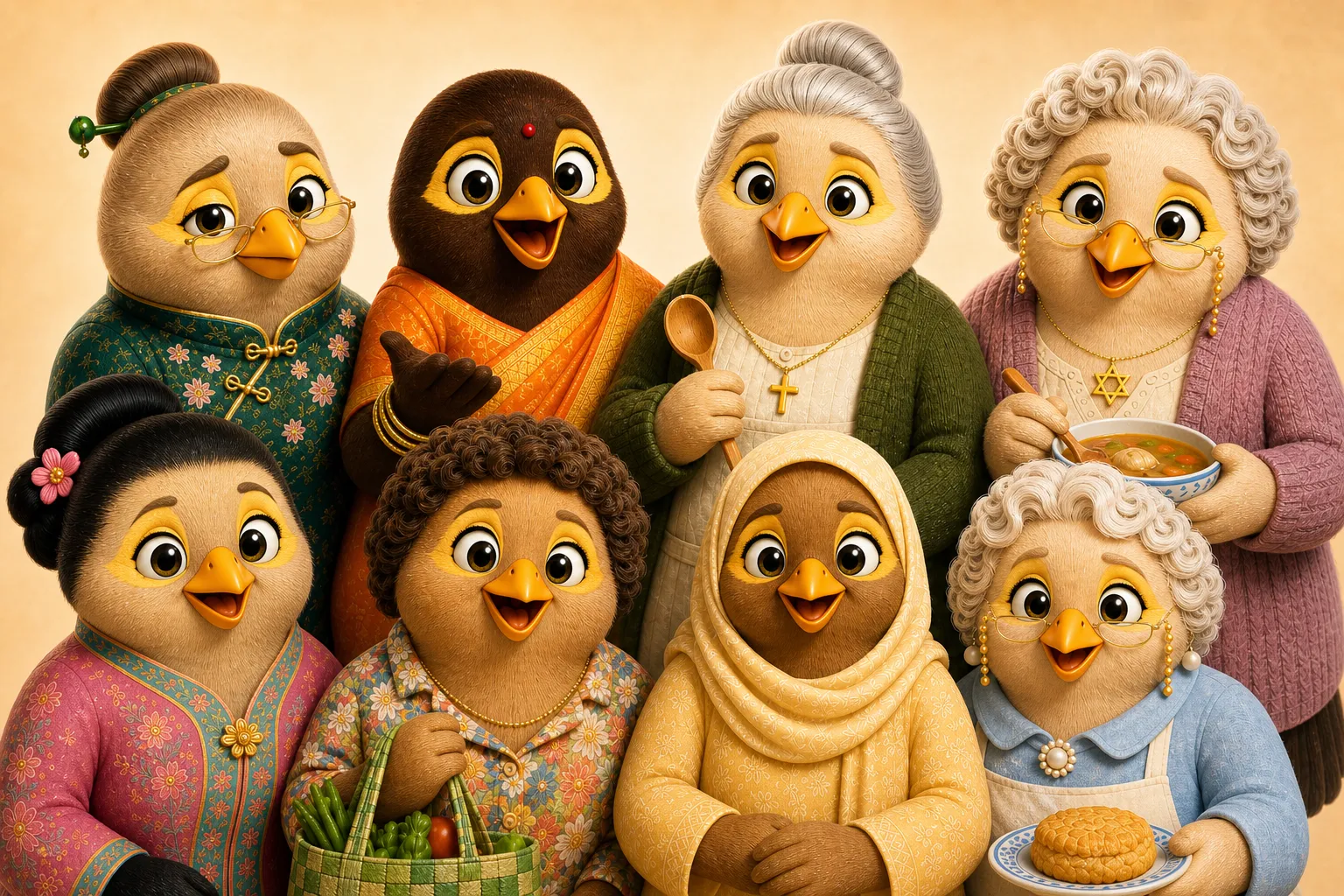
Pick the Aunty that sounds like family

From kopitiam matriarch to Brooklyn grandma, choose the voice your family will recognise. Tap any one to hear her before you pick.

  • Set a household voice everyone hears on announcements, reminders and nags.
  • Each Aunty has her own personality and warmth — pick the one that feels like home.
  • Change her any time from the Aunty settings.
Aunty the myna pointing

Messaging, calls & announcements

Everything the family needs to talk — and nothing it doesn't. Built for phones and the hub alike.

  • Family chat with voice notes, replies, forwarding, a double-tap ❤️, and scheduled messages.
  • One-tap video calls to anyone; Drop In to a hub and it auto-answers, like an intercom.
  • Announcements broadcast to every device and are spoken aloud by Aunty.
  • Call history sits right in the chat thread, with missed calls flagged.
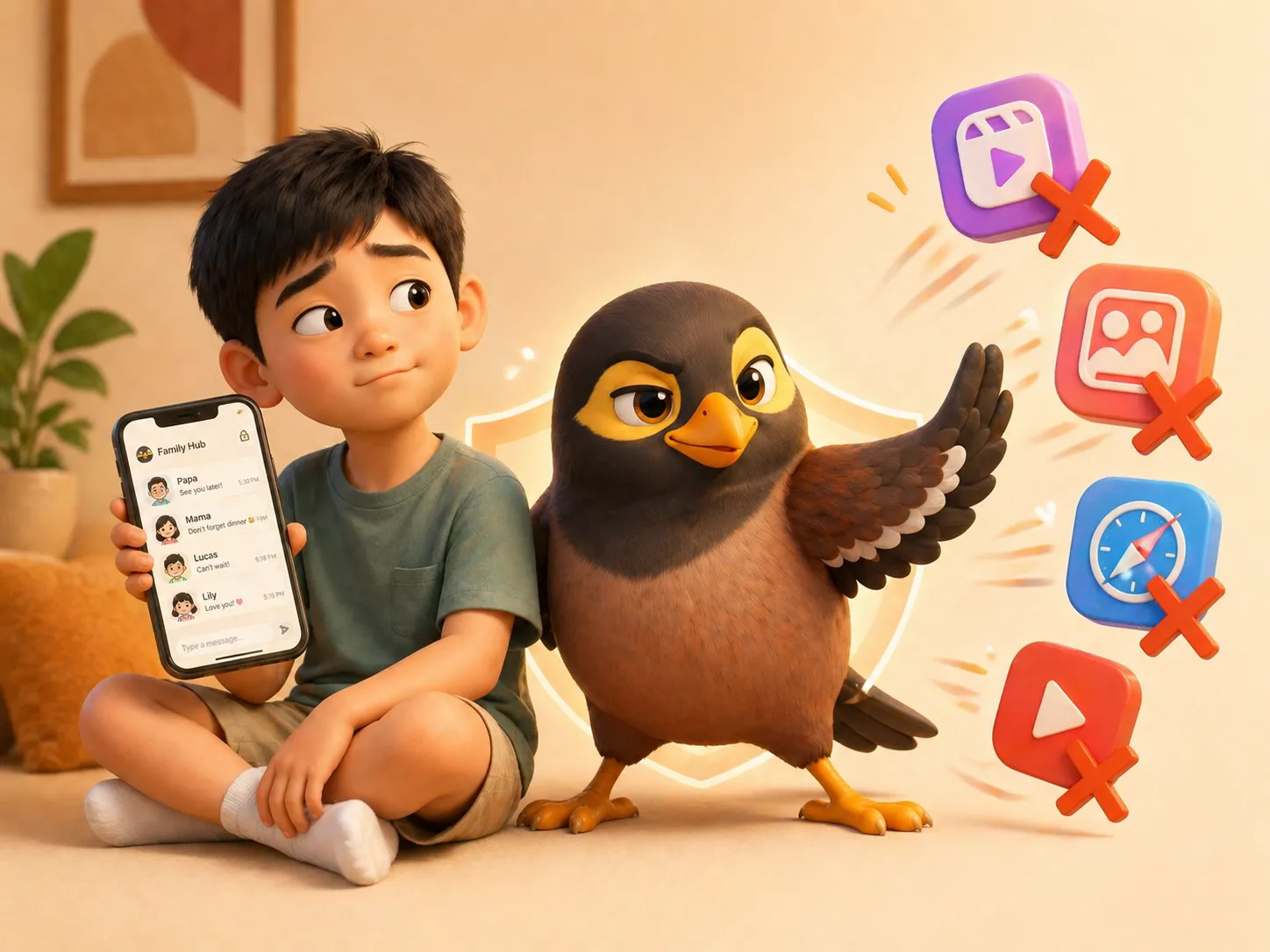
A kid's Myna phone with social-media apps crossed out, guarded by Aunty

A child's first phone — no harm done

A real phone for staying in touch, with none of the rabbit holes. Aligned with Grow Well SG, endorsed by tired parents.

  • Locked to Myna: no browser, no app store, no social media. Just family chats and calls.
  • Essentials like Phone and Maps are always there — because safety doesn't wait.
  • "Ask Mama": your child requests any other app, you approve a time window, it appears — then it's gone.
  • Gentle spoken reminders land on the kid's phone in your family's voice.
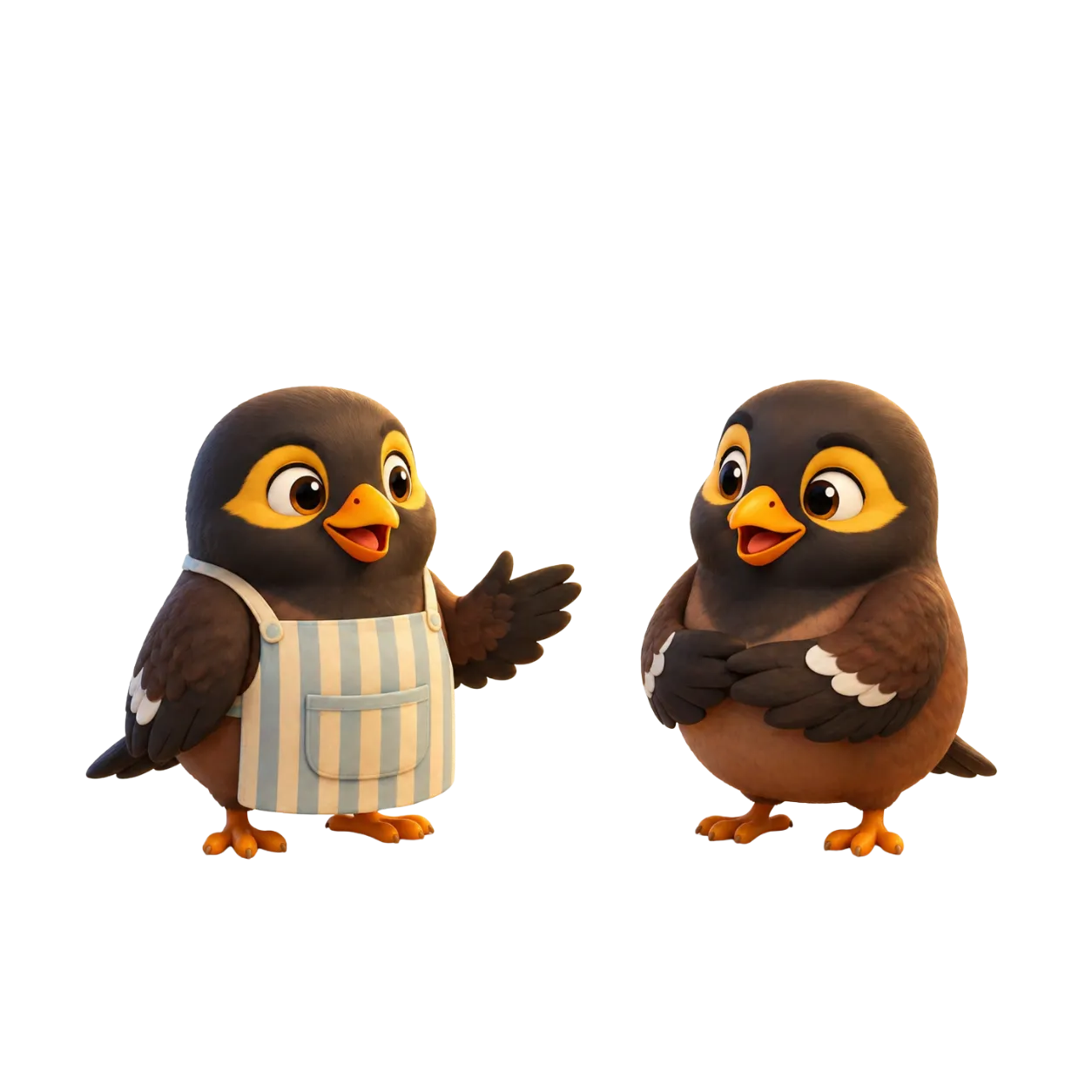
A helper and a parent myna chatting, with messages auto-translated

Helpers feel like family

Bridge the language gap without anyone feeling left out, and give exactly the right level of access.

  • Two-way auto-translation of chat and voice notes, in the helper's own language.
  • Give helpers the access they need — nothing more, nothing less.
  • Add relatives too, with Chinese two-way translation for voice and chat.
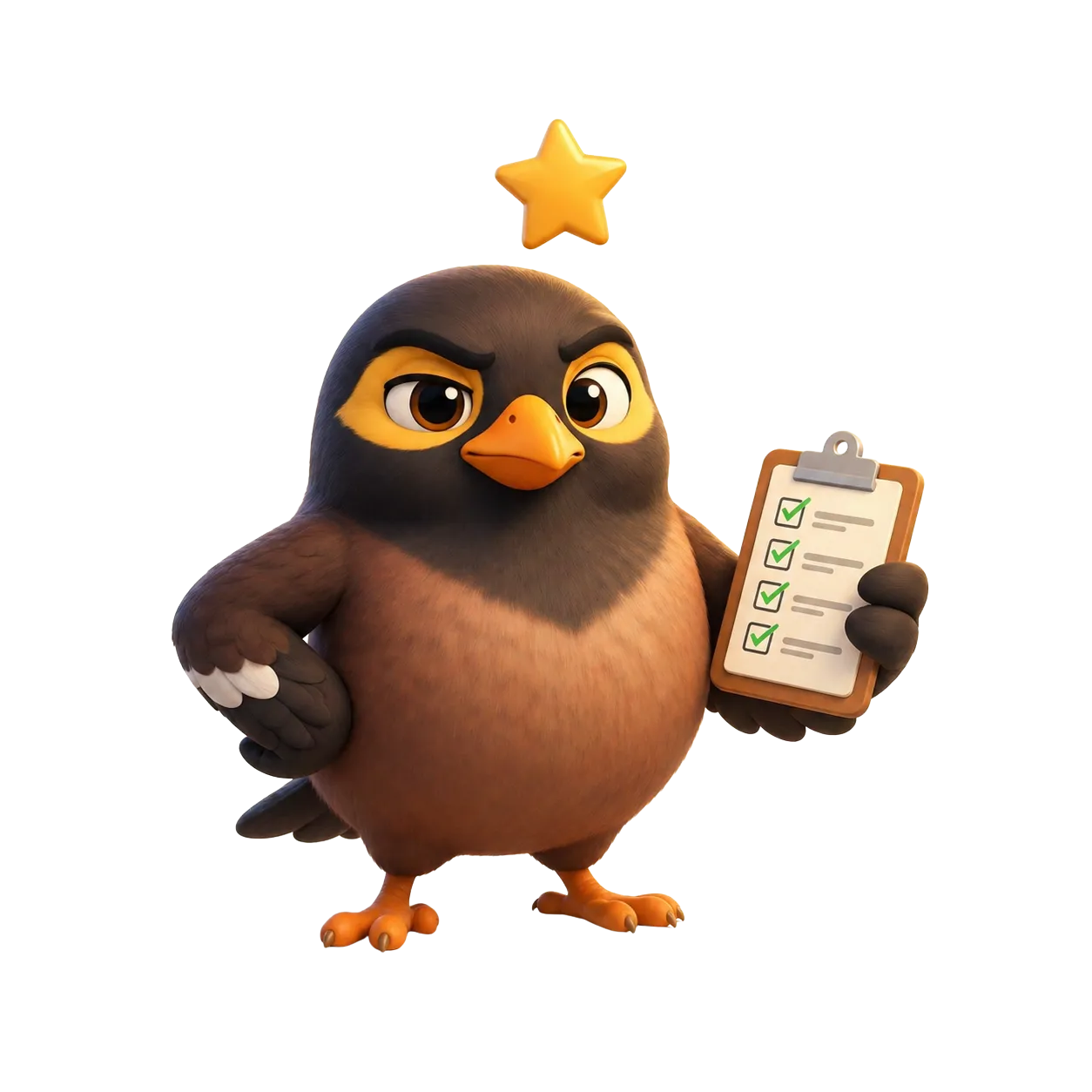
Aunty the myna with a checklist

Calendar, tasks & nags

Aunty never forgets — so you don't have to. The chores, the lessons, the pickups, handled.

  • Recurring tasks (daily, weekly, monthly), often auto-extracted straight from your messages.
  • Automatic and on-demand nags — schedule them, or fire one off the moment you remember.
  • Gold stars celebrate completed chores and make good habits fun for kids.
  • Two-way sync with Apple and Google Calendar, plus smart shopping lists that sort themselves into categories.
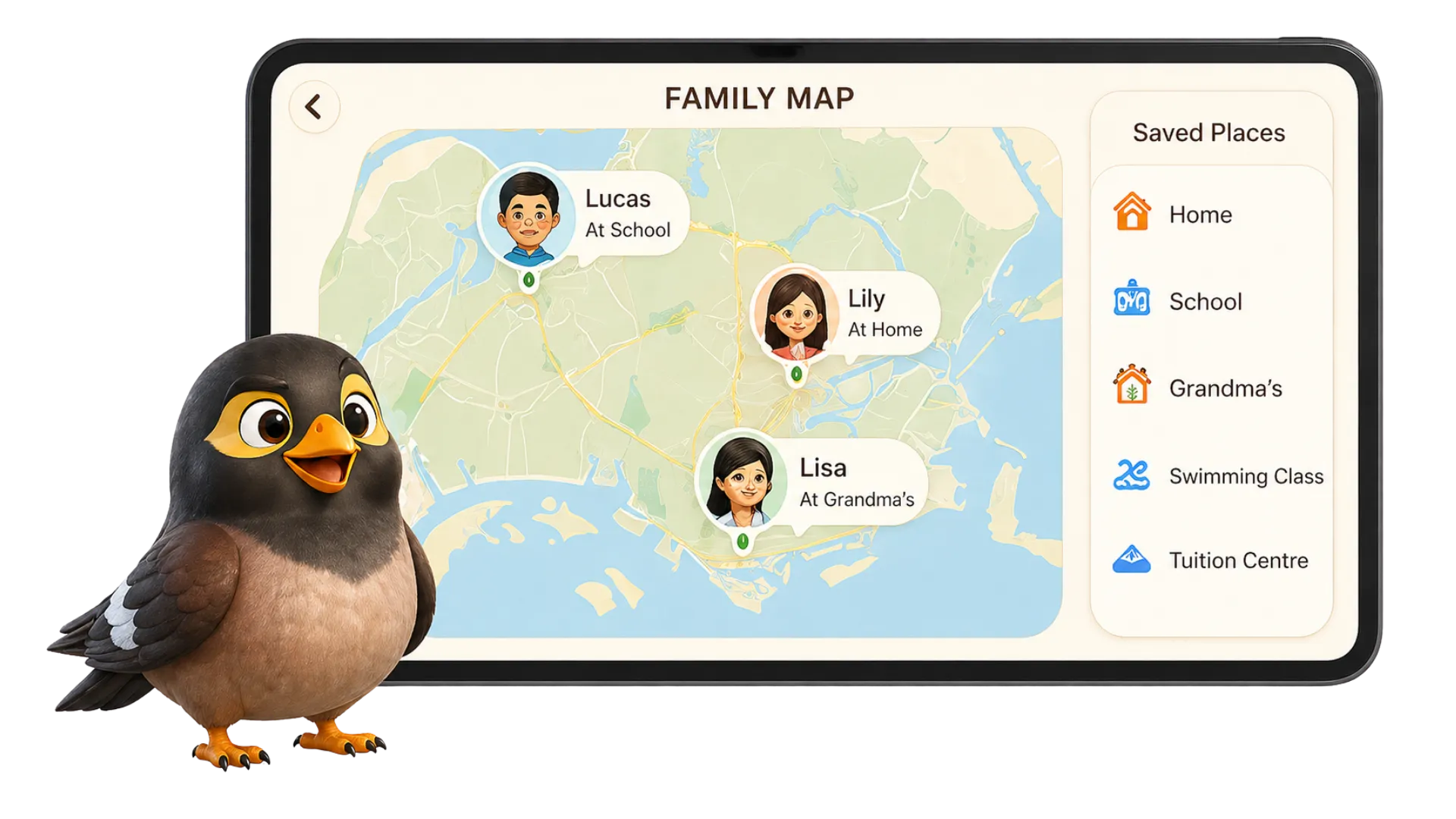
The family map on a tablet, showing kids' avatars at school, home and grandma's

Everyone home, on one screen

Peace of mind, not surveillance. See where your kids are at a glance and get a gentle ping when they arrive.

  • See your children at school, home or grandma's — at a glance.
  • Get a soft "arrived home" notification, so you know without hovering.
  • Location is opt-in per person and set up from each phone.

Account & billing

Is Myna free?
During the private beta, Myna is completely free. The free tier always covers the essentials — the family hub, up to four members, chat and voice notes, recurring tasks, family announcements and smart shopping lists.
What will the paid plan include?
After launch, premium features such as auto-translation for helpers, location, calendar sync and multi-hub will move to a paid plan. You'll always start with a free trial and we'll never charge you without telling you first.
How do I subscribe or cancel?
Subscriptions are handled through the App Store (iPhone) or Google Play (Android). Manage or cancel any time from your store account — your access continues until the end of the period you've paid for.
How is my family's data handled?
Your family's information stays private to your household. Sensitive numbers from documents are kept in an encrypted vault, and we follow Singapore's PDPA everywhere Myna ships. See our Privacy Policy for the full detail.

Troubleshooting

The handful of things that occasionally trip families up — and the quick fix for each.

Updates

How do I update to the latest version?
On a parent phone: open MANAGE, scroll to the bottom, and tap "Check for updates". On a child's phone or a hub tablet: tap the settings gear, unlock with your parent PIN, then "Check for updates". Give it a moment, then reopen Myna.
An update doesn't seem to apply
Fully close Myna and reopen it once — updates finish applying on the next launch. If a device has been offline for a while, connect it to wifi and check again.

Kids' phone & Guardian

The safety lock isn't working — my child can open other apps
Guardian (an Accessibility service) needs to be switched on. Open Myna on the child's phone and follow the Guardian setup, which takes you to Settings → Accessibility to enable it. Once it's on, the phone locks to Myna.
Guardian keeps turning itself off
Android automatically disables Accessibility services for any app that has been "force-stopped" (including from a "clear all" / aggressive task-killer). If Guardian is off, the usual cause is a force-stop — just reopen Myna and turn Guardian back on, and avoid force-stopping the app.
I can't enable Guardian on a newer phone
On Android 13 and later, newly-installed apps can be blocked by "Restricted settings". Go to Settings → Apps → Myna → tap the ⋮ menu → "Allow restricted settings", then return to Myna and enable Guardian.

Calls & audio

A call has no sound, or comes out of the wrong speaker
Use the speaker button on the call screen to switch between earpiece and speaker. If you're on Bluetooth, audio follows your headset — disconnect it to return to the phone.
The hub didn't auto-answer a Drop In
Wake the tablet's screen and keep the hub plugged in. A hub that has gone into deep sleep may miss an auto-answer; keeping the screen on (or the device charging) keeps it ready.

Aunty & reminders

Aunty isn't speaking out loud
Check the device volume first. Then check the announcement settings and quiet hours — kid phones honour the quiet windows you set (for example, during school), so reminders show silently during those times.
Aunty didn't save something I told her
Ask her directly — "remember that Charlie is allergic to peanuts". She confirms when she has saved it. If you're ever unsure, ask "what do you know about…" and she'll read it back.

Location & members

I'm not getting location updates for a phone
On that phone, grant Myna location permission set to "Allow all the time", and turn off battery optimisation for Myna so it can update in the background.
I can't add my partner as a parent
Open MANAGE → Add member to get your family code, then have your partner enter that code on their own phone. They'll join as a parent with full access.

Still need a hand?

We're a small team in Singapore and we read every message. Tell us what's happening and we'll help you sort it out.